How to See Scheduled Posts on Social Media
You scheduled the post. Now you cannot find it. Whether you are using Instagram's native tools, Facebook Business Suite, or a third-party scheduler, finding your queued content should not require a scavenger hunt. Here is exactly where to look on every major platform, and how to get a single view of everything that is about to go live.

Why You Need to Know Where Your Scheduled Posts Live
The real consequences of losing track of queued content
Missed Posts Go Unnoticed Until Clients Ask
01A post fails to publish because the connected account expired or the image was flagged. Nobody catches it because nobody checked. The client notices the gap before you do, and that erodes trust fast.
Duplicate Content Goes Out Across Channels
02When you cannot see what is already scheduled, team members re-create and re-schedule the same content. Two versions of the same announcement go live an hour apart. It looks sloppy and confuses your audience.
No Single View of What Is About to Publish
03Instagram shows scheduled posts in one place. Facebook hides them in another. LinkedIn buries them in a menu. If you manage multiple platforms, you are checking three or four different dashboards just to answer the question: what is going out this week?
Client Campaigns Overlap Without Anyone Knowing
04Agencies managing multiple client accounts face this constantly. One client's product launch post is scheduled for the same time as another client's promotion. Without a unified view, you do not catch the conflict until both are live.
Where to Find Scheduled Posts on Every Platform
Step-by-step instructions for each major social network
Instagram: Creator Studio & Meta Business Suite
Instagram does not show scheduled posts inside the app itself. You need to open Meta Business Suite (business.facebook.com) and navigate to Content > Scheduled. If you scheduled through Creator Studio, the same posts appear here since Meta merged the tools. Tap any post to edit the caption, change the publish time, or delete it.
- Open Meta Business Suite
- Go to Content > Scheduled
- Filter by Instagram
- Edit or reschedule from there
Facebook: Business Suite Planner
Facebook's scheduled posts live in Meta Business Suite under the Planner tab (calendar view) or Content > Scheduled (list view). The calendar view is more useful because you can see what day each post is set to go out at a glance. You can also filter by status (scheduled, published, or draft) to find exactly what you need.
- Use the Planner tab for calendar view
- Or Content > Scheduled for list view
- Filter by status
- Bulk-select to reschedule or delete
LinkedIn: Scheduled Posts in the Activity Tab
LinkedIn added native scheduling in 2023. To see your scheduled posts, go to your Company Page, click Activity, then select Scheduled from the dropdown filter. Personal profile scheduled posts are trickier. LinkedIn does not surface them clearly, so you may need to check your post creation flow. This is a known pain point.
- Go to Company Page > Activity
- Select Scheduled filter
- Personal profiles have limited visibility
- Consider a third-party tool for reliability
TikTok: Manage Posts in TikTok Studio
TikTok lets you schedule posts from the desktop upload flow. To view scheduled content, open TikTok Studio (studio.tiktok.com) and check your Posts section. Filter by Scheduled to see what is queued. The mobile app does not show scheduled posts. This is desktop-only, which catches a lot of people off guard.
- Open TikTok Studio on desktop
- Go to Posts section
- Filter by Scheduled status
- Mobile app does not show scheduled posts
Using a Third-Party Scheduler Like CampaignSwift
If you use a scheduling tool, your scheduled posts live in that tool, not on the native platform. This is important: if you scheduled through CampaignSwift (or Buffer, Hootsuite, Later, etc.), the post will not appear in Meta Business Suite's scheduled view. Check your scheduler's content calendar or queue instead.
- Posts live in the tool that scheduled them
- Check the content calendar view
- Filter by platform or client
- One place for all scheduled content
Managing Scheduled Posts Across Multiple Clients
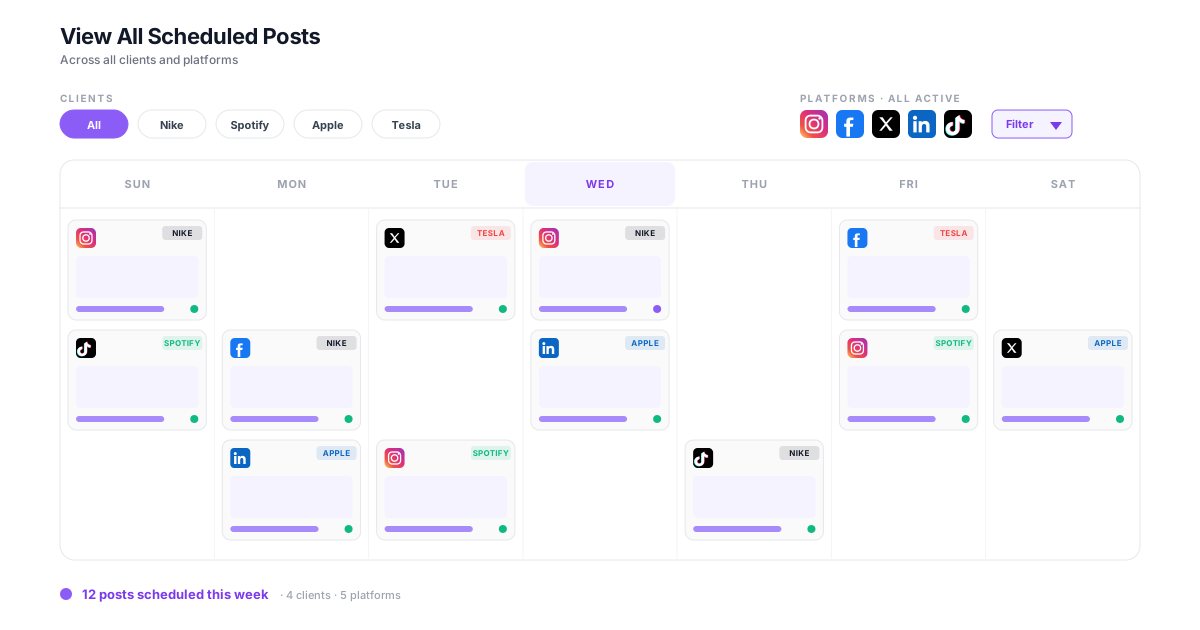
Agencies juggling 10 or more accounts cannot afford to check each platform individually. A unified content calendar pulls scheduled posts from every connected account into one view. You see what is going out for Client A on Instagram, Client B on Facebook, and Client C on LinkedIn, all on the same screen.
- Unified calendar across all clients
- Filter by client, platform, or date
- Catch conflicts before they publish
- Team-wide visibility into the queue
How to Check Your Scheduled Posts: A Quick Workflow
Four steps to make sure nothing slips through the cracks
Check the Native Platform Tools First
Start where you scheduled the post. If you used Meta Business Suite, check there. If you used LinkedIn's native scheduler, check your Company Page Activity tab. Native tools are the source of truth for posts scheduled directly on the platform.
Check Your Third-Party Scheduling Tool
If you use CampaignSwift, Buffer, Hootsuite, or any other scheduler, open that tool's content calendar. Posts scheduled through third-party tools will not show up in the platform's native scheduler. They are sent via API at the scheduled time.
Review the Full Content Calendar
Once you have found your scheduled posts, review the full calendar. Look at the next 7 days. Are there gaps? Overlaps? Two posts going out at the same time on the same channel? This weekly review takes five minutes and prevents most scheduling mistakes.
Set Up Notifications for Publish Confirmations
Most scheduling tools can send you a notification when a post goes live, or when one fails. Turn these on. A failed-to-publish alert at 9 AM is far better than discovering the gap at 5 PM when the client emails you.
Example Scenarios: Finding Scheduled Posts in Practice
How different roles deal with scheduled content visibility
Solo Marketer Checking the Queue Before a Holiday
You are going on vacation for a week and need to confirm that all scheduled posts will go out correctly while you are awayYou open Instagram, Facebook, LinkedIn, and TikTok individually. You scroll through each platform's scheduler, mentally noting dates. You check your notes app for any posts you planned but have not scheduled yet. It takes 30 minutes and you still are not sure you caught everything.
You open your scheduling tool's calendar view, filter by the date range of your vacation, and see every post across every platform on one screen. You spot a gap on Wednesday, fill it with a pre-written post, and close your laptop in under 10 minutes.
Agency Manager Reviewing Client Content Before It Publishes
Three clients have campaigns launching this week and you need to make sure nothing goes out without a final reviewYou log into each client's Meta Business Suite, then each client's LinkedIn, then check whoever is handling TikTok. You are switching between 8 accounts, losing context, and hoping you did not miss a scheduled post that was already approved but needs a last-minute edit.
You filter the content calendar by this week's date range and see all three clients' scheduled posts side by side. You spot that Client B's launch post is set for the same time as Client A's. You shift it by two hours, leave a comment for the content creator, and move on.
Team Lead Auditing Scheduled Posts Before a Product Launch
Your team has been scheduling launch content for two weeks and you need to verify everything is correct and on-brand before the launch dateYou ask each team member to send you a list of what they scheduled and where. Two people forget. One sends a spreadsheet from last week that is already outdated. You spend an hour reconciling lists and still find a typo in a post that is going live in four hours.
You open the shared content calendar, filter by the launch campaign tag, and review every scheduled post in sequence. You approve each one, flag one that needs a copy tweak, and export the final schedule as a PDF for the client's records.
How to See Scheduled Posts Across Multiple Client Accounts
If you manage social media for one brand, finding scheduled posts is a minor annoyance. You check Meta Business Suite, glance at LinkedIn, and you are done. But if you run an agency handling 10, 20, or 50 client accounts, the problem compounds fast. Each client has their own Facebook page, Instagram account, LinkedIn Company Page, and maybe a TikTok profile. That is potentially dozens of separate places to check before you can confidently say "yes, everything is scheduled correctly this week."
We have talked to agency teams who spend the first 30 minutes of every Monday morning logging into each client's native platform just to verify scheduled content. Others keep a shared spreadsheet where team members manually log what they have scheduled and where. Both approaches break down once you pass about 8 clients. There are too many accounts, too many platforms, and too many people involved for manual tracking to be reliable. This is where dedicated multi-client management software stops being optional.
What a unified content calendar changes for agencies:
- Every scheduled post across every client appears on one screen, with no more platform-hopping
- Filter by client to see exactly what is going out for a specific account this week
- Filter by platform to catch gaps (nothing scheduled on LinkedIn for three days, for example)
- Team members see each other's scheduled posts, which eliminates duplicate content
This is where a tool like CampaignSwift's scheduling feature pays for itself. Instead of checking four platforms across 15 client accounts (that is 60 separate checks), you open one calendar and see everything. You can filter by client, by platform, by date range, or by team member. When a client asks "what do we have going out next week?" you pull up the answer in seconds instead of minutes.
If you are still toggling between Meta Business Suite tabs and LinkedIn admin panels every morning, it might be worth doing the math on how much time you would save with a single scheduling hub. Many agencies we work with reclaim a few hours per week just on the visibility side, not counting the time saved from catching conflicts and avoiding duplicates. Pair the unified calendar with bulk scheduling for batch-by-batch month planning, and the time savings compound. We cover what to look for in our roundup of the best social media scheduling tools. Take a look at our pricing to see if it makes sense for your team size.
Scheduled Posts FAQ
Common questions about finding and managing scheduled social media posts
Instagram does not show scheduled posts inside the mobile app. You need to open Meta Business Suite at business.facebook.com, go to Content, and filter by Scheduled. All posts scheduled through Instagram's native tools or Creator Studio will appear there. If you used a third-party tool like CampaignSwift, the post will only appear in that tool's calendar, not in Meta Business Suite.
Not with native platform tools. Each platform has its own scheduler, and there is no cross-platform view built in. To see scheduled posts across Instagram, Facebook, LinkedIn, and TikTok in one calendar, you need a third-party scheduling tool. CampaignSwift's content calendar shows every scheduled post across every connected account on a single screen, filterable by platform, client, or date range.
In most native tools, go to your scheduled posts list, click on the post, and select Edit. In Meta Business Suite, you can change the caption, image, date, and time. On LinkedIn, editing options are more limited, so you may need to delete and re-create the post. In CampaignSwift, click any scheduled post on the calendar to edit all fields including the target platform and publish time.
If you scheduled through a third-party tool (CampaignSwift, Buffer, Hootsuite, Later), the post will not appear in the platform's native scheduler. Third-party tools send posts via API at the scheduled time. Check the tool you used to schedule. Also verify that your account connection has not expired, and reconnect if needed.
Open Meta Business Suite and go to Content > Scheduled, or use the Planner tab for a calendar view. You can filter by page, status, and date range. Posts scheduled through Facebook's own tools will appear here. Posts scheduled through third-party tools will not. Check those tools directly.
For Company Pages, go to your page and click the Activity tab, then filter by Scheduled. LinkedIn's native scheduling was added in 2023 and the interface is still fairly basic. For personal profiles, visibility into scheduled posts is limited. If you schedule LinkedIn content frequently, a dedicated tool gives you much better visibility and control.
Still have questions?
Our team is here to help. Book a 15-minute call to get all your questions answered.
Ready to put the busywork on agents?
Start with one client. Connect accounts, send your first approval link, and let the agents take the follow-ups. Plans start at $29/mo.
30-day free trial · No credit card · Cancel anytime
Questions? Book a 15-min demo call
Schedule Demo