Agency Task Management Organized Work, Happy Teams
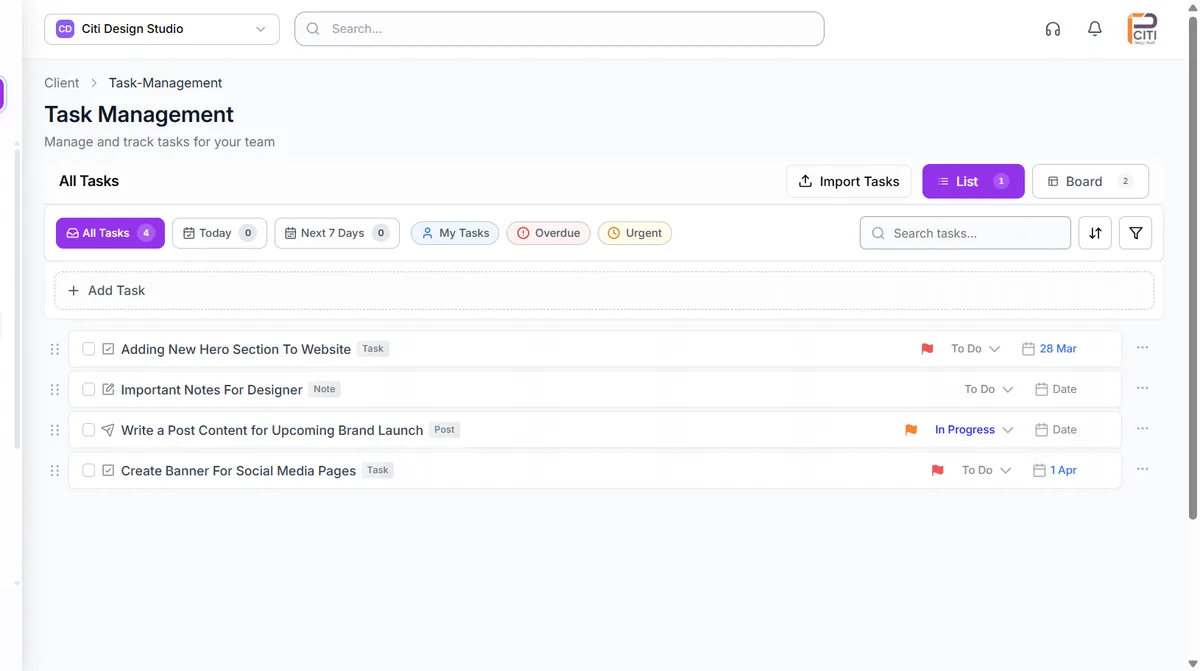
Stop scattering tasks across Asana, Trello, Slack threads, and email. CampaignSwift's task management is built into your agency platform, with a 3-level hierarchy (Folders, Tasks, Subtasks), 4 view modes including Kanban and Calendar views, built-in time tracking, client feedback integration, and direct links to campaigns and content. Your tasks live where your work happens.
The Task Management Problem
Why agencies struggle with task coordination
Scattered Tasks Across Tools
01Your team tracks tasks in Trello, communicates about them in Slack, logs time in Harvest, and collects client feedback via email. No single place shows the full picture of what's happening, what's blocked, and what's overdue. Context lives in five different tools, and things fall through the cracks constantly.
No Visibility Into Team Workload
02Managers can't see who's overloaded and who has capacity. Work gets assigned based on gut feeling rather than data. Some team members drown in tasks while others wait for direction. Without workload visibility, burnout is inevitable and resource allocation is guesswork.
Lost Client Feedback
03Client feedback arrives via email, chat messages, approval workflows, and meeting notes. By the time it reaches the person doing the work, details are lost or distorted. There's no structured system connecting client input to specific tasks, so feedback loops are slow and unreliable.
No Connection Between Tasks and Campaigns
04Tasks exist in a vacuum, disconnected from the campaigns they support. Teams can't see how their individual work contributes to campaign goals. Campaign managers can't track production progress against campaign timelines. The gap between strategy and execution grows wider every week.
Agency Task Management Capabilities
Project management designed for how agencies actually work
Three-Level Task Hierarchy
Organize work from high-level projects down to individual action items with Folders, Tasks, and Subtasks. Folders group related tasks, like 'Q1 Content Production' or 'Client X Website Redesign.' Tasks represent discrete deliverables. Subtasks break work into actionable steps. Parent-child relationships with drag-and-drop reassignment let you restructure work as priorities shift.
- Folders for projects
- Tasks for deliverables
- Subtasks for action items
- Drag-and-drop nesting
Four View Modes
See your work the way that fits your workflow. List View provides a dense table with inline editing and sortable columns. Kanban Board uses drag-and-drop columns by status for visual workflow management. Grid View offers a card-based layout for quick scanning. Calendar View shows tasks on a timeline for deadline-oriented planning.
- List view for power users
- Kanban for status tracking
- Grid view for scanning
- Calendar for deadlines
Task Details with 6 Tabs
Every task opens a side panel with six dedicated tabs providing full context. Overview shows all properties and metadata. Comments enable threaded discussion with @mentions and like reactions. Submissions let team members submit deliverables for review, and reviewers approve, reject, or request revisions. Time Log tracks hours with editable entries and running totals. Feedback connects client input from approval workflows. History provides a complete audit trail of every change.
- Overview & metadata
- Threaded comments
- Submission & review
- Time tracking built in
Team Collaboration
Assign tasks to multiple team members for collaborative work. Use @mentions in comments to pull colleagues into discussions. Attach reference files and deliverables directly to tasks. Right-click context menus provide quick actions without navigating away. The command palette offers keyboard-accessible quick action search for power users who prefer to keep their hands on the keyboard.
- Multi-assignee support
- @mentions in comments
- File attachments
- Right-click context menus
Bulk Operations & Import
Select multiple tasks and apply bulk actions: change status, update priority, delete, or archive in one click. Keyboard shortcuts accelerate common operations: Delete key for removal, Ctrl+A for select all. Import tasks in bulk via a 5-step CSV wizard with template download, column mapping, data validation, conflict resolution, and progress tracking. Perfect for onboarding new clients or migrating from another tool.
- Bulk status changes
- Bulk priority updates
- CSV import wizard
- Keyboard shortcuts
Smart Filtering & Search
Find any task instantly with combined filtering across status, priority, assignee, due date, and campaign. Sort by any field in ascending or descending order. Layer filters together for precise task discovery, like 'high priority tasks assigned to me in the Q1 Campaign that are overdue.' Save time with keyboard shortcuts and a command palette that puts every action within reach.
- Multi-field filtering
- Combined sort & filter
- Campaign-linked tasks
- Command palette search
How Agency Task Management Works
From project setup to delivery tracking
Create Folders & Structure
Set up your task hierarchy with folders for each project, client, or workflow. Define the structure that matches how your agency operates: by client, by department, by campaign, or any combination.
Add Tasks & Subtasks
Create tasks within folders and break them into subtasks. Set priorities, due dates, and descriptions. Link tasks to specific campaigns so work connects directly to strategic goals.
Assign Your Team
Assign tasks to one or multiple team members. Use the Kanban board to visualize workload distribution. Team members see their assignments across all clients and projects in one place.
Track Progress & Time
Monitor task progress through status updates, time log entries, and submission reviews. Identify bottlenecks with overdue highlighting and filter views. Keep clients informed through integrated feedback loops.
Task Management Scenarios
Illustrative scenarios of how agencies organize work and deliver results
Content Production Pipeline
Agency managing content creation for 15 clients with a 6-person teamTasks lived in Trello boards that nobody updated. Content briefs were shared via email. Designers didn't know what was due until someone pinged them on Slack. Time tracking happened in a separate app, if it happened at all. Client feedback came in late and got lost.
Each client has a folder with tasks for every deliverable. Subtasks break content creation into writing, design, review, and publishing steps. Time tracking is built into each task. Client feedback flows from the approval portal directly to the task. The Kanban board shows exactly what's in progress and what's stuck.
Campaign Coordination
Cross-functional team executing a product launch campaignThe campaign involved content, design, paid ads, and social tasks, all tracked in different places. No one had a unified view of campaign progress. Tasks weren't linked to the campaign, so understanding overall completion was impossible.
All campaign tasks live in one folder, linked to the campaign in CampaignSwift. List view shows the full task hierarchy. Team view in campaign analytics reveals who's contributing what. Progress is visible at a glance, and blockers surface before they cause delays.
Client Feedback Loop
Agency streamlining content review and revision cyclesClients emailed feedback. Account managers forwarded it to creators. Context was lost. Revisions were tracked in spreadsheets. Multiple rounds of changes turned a 2-day task into a 2-week ordeal. No one knew how many revision cycles each piece of content required.
Client feedback from the review portal attaches directly to tasks. Creators see feedback in the task's Feedback tab. Submissions and revisions are tracked with version history. The entire feedback loop is visible in one place, and revision cycles are measurable.
Why Task Management Matters More Than Project Management for Agencies
Generic tools were built for software teams, not agencies
Most agencies that try generic project management tools (Asana, ClickUp, Monday) eventually hit the same wall: those tools were built for engineering teams shipping software in sprints, not for agencies shipping creative work to clients in cycles. The wrong abstraction turns into weeks of customization that still doesn't fit.
What agency tasks actually need to connect to
Tasks for agencies need to connect to four things that generic project tools don't natively understand:
- The actual content being produced: not the "task" alone but the post, asset, or deliverable itself
- The campaign it belongs to, so multi-task work doesn't get scattered across unrelated tickets
- The approval stages it passes through: internal review, client review, revision, ship
- The client whose deliverable it represents, for retainer accounting and capacity planning
When agencies switch and what they get
This is why a lot of agencies eventually replace their project tool with dedicated agency project management software that treats tasks as part of the content workflow, not a separate universe. Agency resource management sits on top so account leads can see capacity per team member without opening a second tool. We cover the broader pattern in our agency scaling guide and multi-client management piece.
Task Management FAQs
Common questions about agency task management
CampaignSwift offers four view modes for task management. List View provides a dense tabular layout with inline editing and sortable columns. Kanban Board organizes tasks into drag-and-drop columns by status with swimlane support and work-in-progress limits. Grid View displays tasks in a visual card-based layout for quick scanning. Calendar View maps tasks onto a calendar by due date for deadline-oriented planning. Switch between views anytime. Your tasks stay the same, only the perspective changes.
CampaignSwift uses a three-level hierarchy: Folders, Tasks, and Subtasks. Folders are the top level. Use them to organize by project, client, department, or any grouping that fits your workflow. Tasks sit inside folders and represent discrete deliverables or pieces of work. Subtasks break tasks into smaller action items. Tasks can also be nested under parent tasks using drag-and-drop reassignment. This hierarchy lets you plan at the strategic level while tracking execution at the granular level.
Yes, time tracking is built directly into every task through the Time Log tab in the task details panel. Team members log time entries with descriptions, edit existing entries, and see running totals. This eliminates the need for a separate time tracking tool and ensures hours are recorded against the specific task they relate to. Time data can be used for client billing, capacity planning, and understanding how long different types of work actually take.
Yes. Every task has a Campaign Link field that associates it with a specific campaign. When tasks are linked to campaigns, you can filter your task views by campaign, see task progress in campaign analytics, and understand how individual work items contribute to campaign goals. Campaign managers get visibility into production progress, and team members see the strategic context for their day-to-day work.
CampaignSwift provides a 5-step CSV import wizard for bulk task creation. Step 1: Upload your CSV file (a downloadable template ensures correct formatting). Step 2: Map your CSV columns to CampaignSwift task fields like title, description, priority, assignee, and due date. Step 3: The system validates your data and highlights any errors or missing required fields. Step 4: Resolve conflicts if any imported tasks match existing ones. Step 5: Confirm the import and watch progress tracking in real time. This is ideal for onboarding new clients, migrating from another tool, or setting up recurring project templates.
CampaignSwift supports extensive keyboard shortcuts for power users. Delete key removes selected tasks. Ctrl+A selects all tasks in the current view. Right-click context menus provide quick actions like edit, assign, change status, and duplicate without navigating away. The command palette (accessible via keyboard shortcut) offers a searchable list of all available actions. Full screen reader support and keyboard navigation ensure the platform is accessible to all team members.
Still have questions?
Our team is here to help. Book a 15-minute call to get all your questions answered.
Ready to put the busywork on agents?
Start with one client. Connect accounts, send your first approval link, and let the agents take the follow-ups. Plans start at $29/mo.
30-day free trial · No credit card · Cancel anytime
Questions? Book a 15-min demo call
Schedule Demo