Instagram Safe Zone Sizes Complete Guide 2026
Nothing kills a polished Instagram post faster than a cropped logo or a caption that disappears behind the UI. Every format on Instagram (feed posts, Stories, Reels, carousels) has its own safe zone where text and key visual elements need to stay. Get the dimensions wrong, and your content looks sloppy no matter how good the design is. This guide gives you the exact pixel measurements for every format so your work shows up the way you intended.

Why Safe Zones Trip Up Even Experienced Designers
The most common ways content gets cropped or hidden on Instagram
Cropped Logos on Feed Posts
01You design a beautiful 1080x1080 square post with a logo in the corner, and Instagram shaves off a few pixels on every side. The logo gets clipped, and the post looks unfinished. This happens because Instagram applies a slight crop even to correctly sized images, so your key elements need padding from the edges.
Text Cut Off in Stories
02Story dimensions are 1080x1920, but that does not mean you have 1920 pixels of usable space. The top 250 pixels are covered by the username, profile picture, and timestamp. The bottom 250 pixels are blocked by the reply bar and swipe-up area. Text placed in either zone disappears completely.
Reels UI Covering Your Content
03Instagram Reels overlay captions, like buttons, share buttons, and audio information across the bottom 400 pixels of the frame. If your call-to-action text or product shot sits in that area, viewers literally cannot see it. This is the most common Reel design mistake we see agencies make.
Carousel Images Looking Inconsistent
04Carousels support both 1:1 and 4:5 aspect ratios, but the first image sets the crop for every subsequent slide. If you mix ratios or place important content near the edges, some slides look perfect while others lose their headlines or key visuals to the crop.
Instagram Safe Zone Sizes by Format
Exact pixel dimensions and safe area margins for every Instagram content type
Feed Post Safe Zone
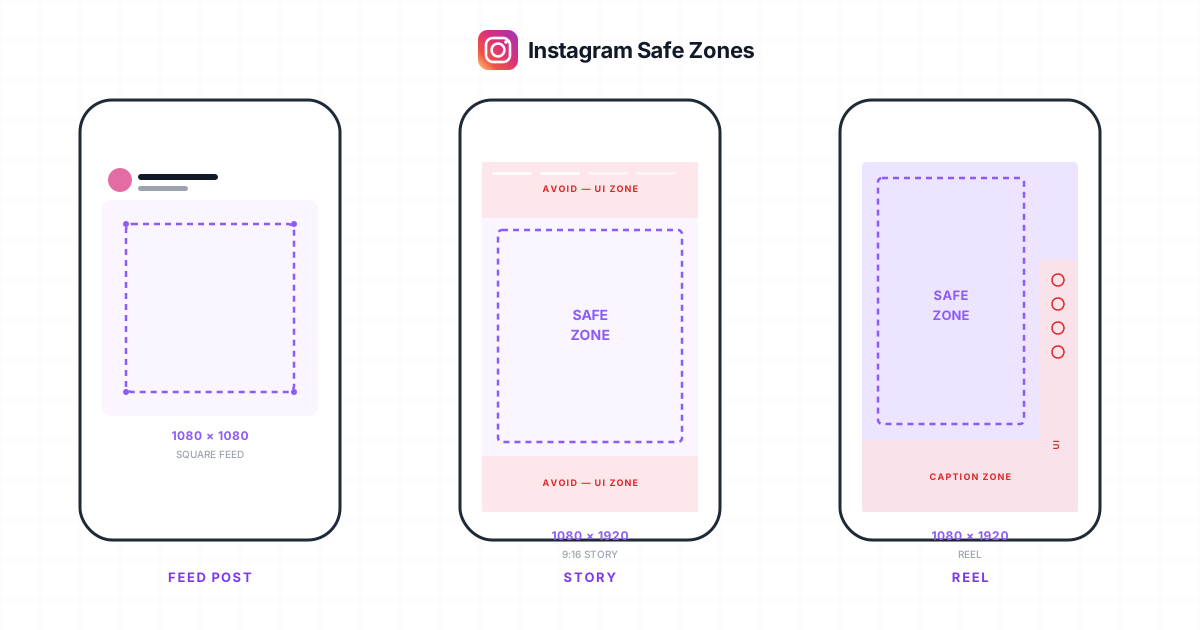
Feed posts display at 1080x1080 pixels (1:1 square), though Instagram also supports 1080x566 (1.91:1 landscape) and 1080x1350 (4:5 portrait). For square posts, keep all critical elements (logos, text overlays, product shots) within the center 1000x1000 pixel area. That gives you a 40-pixel margin on every side, which accounts for Instagram's slight edge crop and ensures nothing gets clipped in the grid view.
- Canvas: 1080x1080px (1:1)
- Safe zone: 1000x1000px center
- Margin: 40px on all sides
- Grid thumbnail crops to center
Story Safe Zone
Stories use a 1080x1920 pixel canvas (9:16 vertical). The usable safe zone is roughly 1080x1420 pixels in the center of the frame. Avoid the top 250 pixels where Instagram shows the profile picture, username, and story timestamp. Avoid the bottom 250 pixels where the message input bar, send button, and swipe-up/link sticker area sit. Keep all text, CTAs, and essential visuals between the 250px and 1670px vertical marks.
- Canvas: 1080x1920px (9:16)
- Safe zone: 1080x1420px center
- Top margin: 250px (username/timestamp)
- Bottom margin: 250px (reply bar/links)
Reel Safe Zone
Reels share the same 1080x1920 canvas as Stories but have a larger bottom dead zone. The Reel UI overlays caption text, like/comment/share buttons, and audio attribution across the bottom 400 pixels on the right side and roughly 270 pixels on the left. The top 200 pixels are used for the account name and follow button. Your safe content area is approximately 1080x1320 pixels centered vertically. Place your hook text and key visuals in the top-center portion of the frame.
- Canvas: 1080x1920px (9:16)
- Safe zone: ~1080x1320px center
- Bottom margin: 400px (UI overlay)
- Top margin: 200px (account info)
Carousel Safe Zone
Carousels support two aspect ratios: 1080x1080 (1:1 square) and 1080x1350 (4:5 portrait). The first slide's aspect ratio locks in for the entire carousel, and every subsequent slide gets cropped to match. For 1:1 carousels, use the same 1000x1000 safe zone as regular feed posts. For 4:5 carousels, keep essential content within a 1000x1270 pixel center area. Swipe indicators appear at the bottom, so leave extra padding there.
- Square: 1080x1080px (1:1)
- Portrait: 1080x1350px (4:5)
- Safe zone: 40px margin all sides
- First slide sets crop for all
Profile Picture Safe Zone
Profile pictures upload at 320x320 pixels but display in a circular crop. The circle inscribed in a 320x320 square has a diameter of 320 pixels, which means the four corners are cut off entirely. Keep faces, logos, and text within a centered circle roughly 280 pixels in diameter to avoid anything important sitting right at the circular edge where it can look awkward or partially clipped.
- Upload: 320x320px square
- Display: circular crop
- Safe diameter: ~280px centered
- Corners are fully clipped
Highlight Cover and Cover Photo
Story Highlight covers display at 161x161 pixels but you should design at 1080x1920 (same as Stories) since the cover is selected from story content. Instagram crops the cover to a circle on the profile page, centered on whatever portion of the frame you select. Design your highlight cover icon within a 600x600 pixel centered area of a 1080x1920 canvas for best results. Reel cover photos display at 1080x1920 in the Reels tab but get cropped to 1080x1350 (4:5) in the profile grid.
- Highlight cover: 1080x1920px canvas
- Display: 161x161px circular crop
- Icon safe zone: 600x600px center
- Reel cover grid crop: 1080x1350px
How to Apply Safe Zones to Your Content Workflow
A practical four-step process for getting content right before it goes live
Check the Format Dimensions First
Before opening your design tool, confirm which Instagram format you are creating for. A feed post, Story, Reel, and carousel each have different canvas sizes and different safe zones. Starting with the wrong canvas means retrofitting content later, which usually means compromising the layout.
Use a Safe Zone Template Overlay
Create or download a transparent overlay that marks the safe zone boundaries for each format. In Figma, Canva, or Photoshop, place this overlay on a locked layer above your design. Anything outside the safe zone lines is at risk of getting cropped or hidden by Instagram's UI elements.
Preview Before Posting
Use Instagram's built-in preview or a scheduling tool that shows a realistic mockup of how your content will look in-feed, in Stories, and in the profile grid. This catches problems that static design reviews miss, especially the grid thumbnail crop on carousel and Reel covers.
Test on an Actual Mobile Device
Screen sizes vary across phones. What looks fine on a desktop preview can clip differently on a smaller phone screen. Post to a private test account and check the result on at least one iPhone and one Android device before publishing to your main account or your client's account.
Who Needs Safe Zone Guides
Typical scenarios where getting the safe zone wrong costs time and credibility
Designer Building Branded Templates
A graphic designer is creating a set of 30 reusable Instagram templates for a fitness brand. The templates include quote cards, product announcements, and tip carousels.Without safe zone guides baked into the template files, the designer places text too close to edges on some templates. The brand's social media manager uses them as-is, and several posts go live with cropped headlines. The designer has to rebuild the affected templates and the brand delays its content calendar by a week.
With safe zone overlays built into every template, the designer locks critical content within the safe area from the start. The social media manager can swap text and images without worrying about crops. Every post looks intentional and on-brand.
Agency Producing Content for Multiple Clients
A social media agency manages Instagram accounts for 12 clients across different industries. Each client has different brand guidelines, but all content goes through the same production pipeline.Junior designers on the team keep making safe zone mistakes, especially on Reels where the UI overlay is larger than they expect. The account manager catches the issues during client review, which creates revision cycles and delays approvals. Some cropped posts slip through and go live, leading to client complaints.
The agency builds safe zone templates into their design system and adds a safe zone check to their QA process. Every designer works from the same overlay files. The account manager's review catches content issues, not dimension issues. Client complaints about cropped content drop to zero.
Social Media Manager Avoiding Reshoots
A solo social media manager shoots and edits Reels for a restaurant client. The Reels feature the chef explaining dishes, with text overlays showing the dish name and price.The text overlays sit in the bottom third of the frame where Instagram's Reel UI covers them. The dish name and price are invisible to viewers. The manager has to re-edit the Reels with repositioned text, and in two cases reshoot because the chef's framing does not leave room to move the text up.
Before shooting, the manager frames the shot knowing the bottom 400 pixels are off-limits. Text overlays go in the upper third. Every Reel comes out clean on the first edit, and the chef only needs to film once.
How to Use Instagram Safe Zone Templates in Your Agency Workflow
If your agency produces Instagram content for more than a handful of clients, building safe zone guides into your templates is one of the most effective things you can do through proper brand asset management. We have seen agencies waste entire production days fixing posts where a headline got cropped or a logo disappeared behind the Reel UI. The fix is straightforward: create a master template file for each Instagram format with the safe zone boundaries drawn in as a locked, non-printable layer. Every designer on your team starts from that file, and safe zone mistakes effectively stop happening.
The template does not need to be complicated. For feed posts, it is a 1080x1080 canvas with a centered 1000x1000 rectangle showing the safe boundary. For Stories and Reels, it is a 1080x1920 canvas with the top and bottom dead zones marked in a semi-transparent overlay. Store these template files in a shared location your whole team can access. A centralized media library works well here because designers can pull the correct template without searching through folders or Slack threads. CampaignSwift's media library lets you tag templates by format and client, so the right starting file is always two clicks away.
Quick reference: safe zone margins by format:
- Feed post (1:1): 40px margin on all sides (safe area: 1000x1000px)
- Story (9:16): 250px top + 250px bottom (safe area: 1080x1420px)
- Reel (9:16): 200px top + 400px bottom (safe area: ~1080x1320px)
- Carousel (4:5): 40px sides + first slide sets crop for all
- Profile picture: ~280px diameter circle from 320x320 square
Once your templates are in place, add a safe zone check as a line item in your social media approval workflow. Before any post goes to the client for approval, the reviewer confirms that no text, logo, or call-to-action sits outside the safe boundaries. This takes about five seconds per post but prevents revision rounds that eat up hours. If your team is producing high volumes of Instagram content, pairing safe zone templates with a scheduling and preview tool that shows how the post will actually render on Instagram cuts the feedback loop down to minutes instead of days. Most agencies pair this with their broader Instagram analytics workflow so safe zone mistakes get caught before they cost engagement.
Safe Zone FAQ
Common questions about Instagram dimensions and safe areas
The safe zone is the area within each content format where text, logos, and important visual elements will not be cropped or hidden by Instagram's interface. The platform overlays UI elements like usernames, like buttons, captions, and reply bars on top of your content. The safe zone is the remaining visible area where your content is guaranteed to display fully.
Instagram Stories should be designed at 1080x1920 pixels (9:16 aspect ratio). However, the usable safe zone is approximately 1080x1420 pixels. Avoid the top 250 pixels (where the username and timestamp appear) and the bottom 250 pixels (where the reply bar and link stickers sit). Keep all important text and visuals within the center band of the frame.
Instagram Reels overlay UI elements across the bottom 400 pixels of the right side and bottom 270 pixels on the left, including the caption, like/comment/share buttons, and audio attribution. If your text or call-to-action sits in this zone, it gets covered. Move all critical text to the upper two-thirds of the Reel frame to keep it visible.
For a standard 1080x1080 square feed post, the safe zone is approximately 1000x1000 pixels centered in the frame. This gives you a 40-pixel buffer on each edge, which accounts for Instagram's slight automatic crop. For 4:5 portrait posts (1080x1350), keep critical content within a 1000x1270 pixel center area.
These dimensions reflect the current official Instagram (Meta) layout as of 2026, based on exactly where Instagram overlays its own UI: usernames, timestamps, Reel captions, like and share buttons, and the reply bar. Instagram doesn't publish a single 'official safe zone' spec sheet, so these pixel measurements are derived from the actual rendered interface and updated whenever the layout changes.
Hootsuite and other tools publish popular safe-zone references, and the core canvas sizes match: 1080x1920 pixels for Stories and Reels, 1080x1080 for feed posts. The difference is currency: the measurements here are kept up to date for 2026, including the larger Reels UI overlay (roughly the bottom 400 pixels) that older guides sometimes understate. When in doubt, leave slightly more margin than any single guide suggests.
Yes, Instagram occasionally adjusts its UI layout, which can shift safe zone boundaries. The most significant recent changes involved Reels UI elements expanding and the addition of new interactive stickers in Stories. We update this guide when Instagram makes layout changes that affect safe zones. The dimensions listed here are accurate as of early 2026.
Carousels use the same safe zones as regular feed posts: 1000x1000 for square (1:1) or 1000x1270 for portrait (4:5). The key difference is that the first slide's aspect ratio locks in for every slide in the carousel. If your first slide is square, all subsequent slides get cropped to square. Design all slides at the same ratio and keep content within the safe area consistently across every slide.
In Figma, create a frame at the target size (e.g., 1080x1920 for Stories), add a rectangle marking the unsafe areas with a semi-transparent red fill, and lock that layer. In Canva, upload a transparent PNG overlay with the safe zone boundaries marked and place it as the top layer of your design. You can also find free downloadable safe zone templates online; just verify the dimensions match the current specs listed in this guide.
Yes. The Instagram profile grid shows square (1:1) thumbnails regardless of your post's original aspect ratio. If you post a 4:5 portrait image, the grid thumbnail crops to the center square. Any important content in the top or bottom bands of a portrait post will be hidden in the grid view. Consider how your post looks both in-feed and on the grid when placing key visuals.
Still have questions?
Our team is here to help. Book a 15-minute call to get all your questions answered.
Ready to put the busywork on agents?
Start with one client. Connect accounts, send your first approval link, and let the agents take the follow-ups. Plans start at $29/mo.
30-day free trial · No credit card · Cancel anytime
Questions? Book a 15-min demo call
Schedule Demo